iPhone Setup Guide · 5 Easy Steps
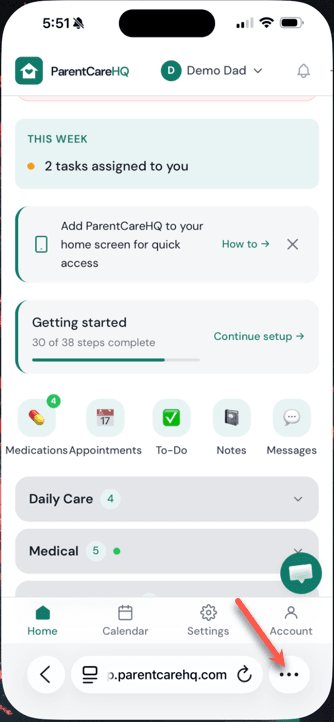
Tap the menu icon in your browser
While viewing ParentCareHQ in Safari, tap the three-dot menu (⋯) in the lower right corner of your browser window.
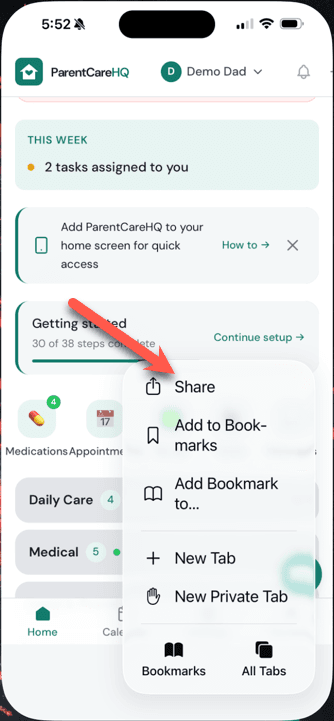
Select "Share"
From the menu that appears, tap Share. This opens the iOS share sheet where you’ll find the home screen option.
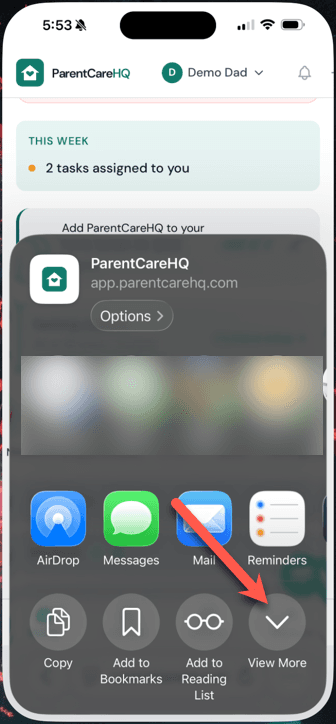
Tap "View More"
In the share sheet, scroll across the action icons and tap View More (the down arrow icon) to see the full list of options.
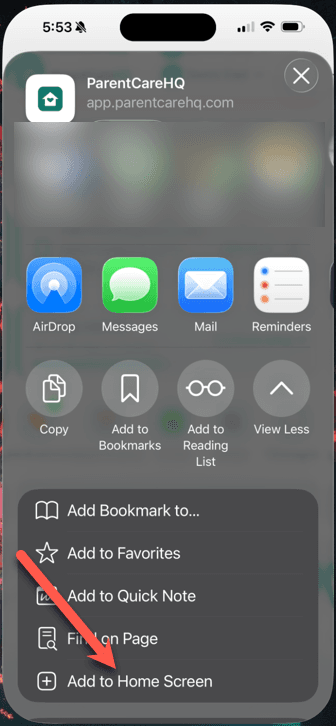
Select "Add to Home Screen"
Find and tap Add to Home Screen from the expanded list.
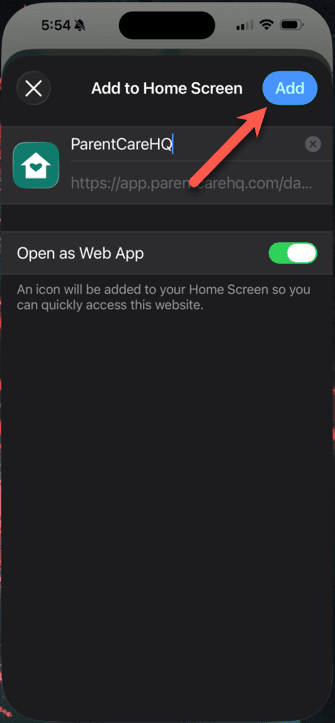
Tap "Add" to confirm
A confirmation screen will appear showing the ParentCareHQ icon. Tap the blue Add button in the top right corner to finish.
You're all set!
The ParentCareHQ icon will now appear on your home screen alongside your other apps — tap it anytime for instant access to your parent's care information.
Android users: The process is similar on Android. Open ParentCareHQ in Chrome, tap the three-dot menu in the top right, and look for “Add to Home screen” or “Install app”. Steps may vary slightly by browser and device.
Not signed up yet? Try ParentCareHQ free for 14 days.
Start free trial →